Most gamers make one simple mistake. They use their controller on default settings and never touch anything else. That means they are not getting the best performance.
If you are using the UGGControman controller or planning to buy one, you already have a big advantage. This controller is built for speed, accuracy, and control. But to actually feel that difference, you need to set it up the right way.
In this guide, I will show you exactly how to use the UGGControman controller step by step. From basic setup to advanced settings, everything is explained in a simple way.
By the end, you will know how to customize it for your play style and get smoother gameplay with less delay.
What Is the UGGControman Controller?
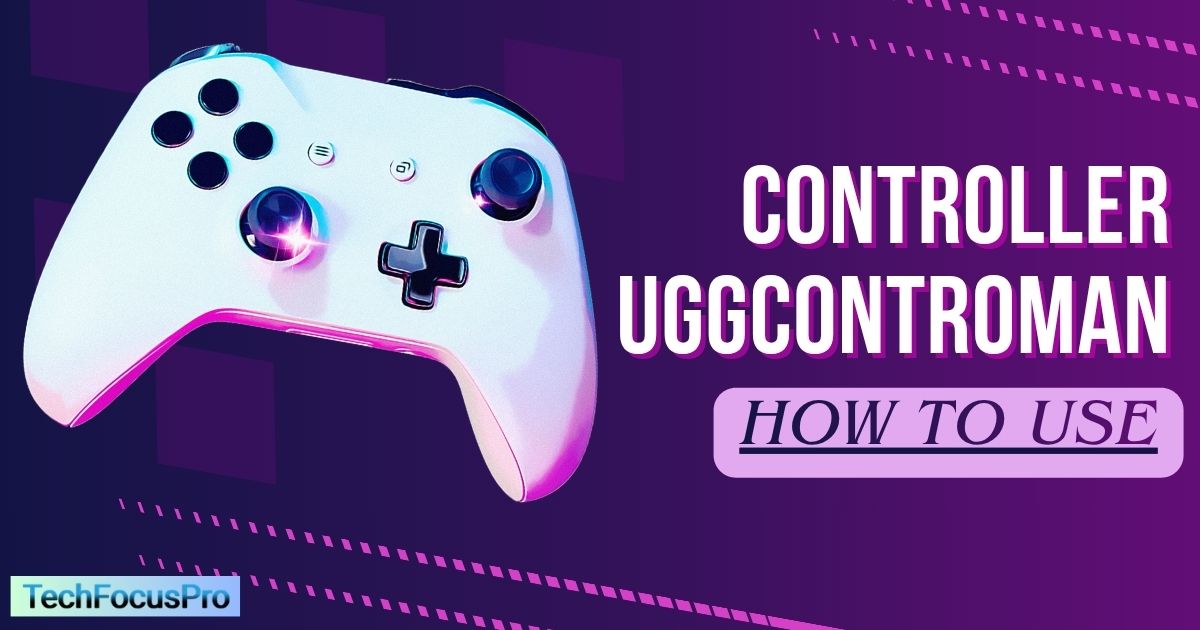
UGGControman is a premium gaming controller made by UnderGrowthGames. It is designed for players who want better control and faster response during gameplay.
What makes it different from normal controllers is the technology inside. It uses Hall effect sensors, which help prevent stick drift. This means your analog sticks stay accurate even after long use. You don’t get that annoying movement when you are not even touching the stick.
The controller also feels solid in hand. It has a comfortable grip that helps during long gaming sessions. You also get extra controls like back paddles, which allow you to play without taking your thumbs off the sticks.
Another big advantage is speed. When you connect it with a cable, it gives you almost instant response. This is very useful in fast games like shooting or racing.
On top of that, it comes with a companion app. This is where the real power is. You can change button layout, adjust sensitivity, create profiles, and even set custom actions.
In short, UGGControman is not just a controller. It is a full control system that lets you play the way you want.
Key Features of UGGControman Software
The controller is powerful on its own. But the real control comes from its software. This is where you can shape everything to match your play style.
The software is simple to use. At the same time it gives deep control for serious players. You can change how every button works. You can adjust how your sticks respond. You can even create your own play profiles.
Let’s break down the most useful features.
Button Remapping
You can change what each button does. This includes all standard buttons and the back paddles.
For example, you can move jump or crouch to the back paddles. This helps you keep your thumbs on the sticks. It feels smoother and faster in games like shooters.
Custom Profiles
You can save up to three profiles inside the controller. Each profile can have different settings.
This is useful if you play different types of games. You can switch between profiles in seconds without opening the app again.
Sensitivity Curves
This feature controls how your analog sticks react.
You can choose a smooth and steady response or a faster and sharper one. Some players like quick movement for aiming. Others prefer slow and precise control.
The good part is you can test and adjust until it feels right.
Macros and Rapid Actions
You can assign multiple actions to a single button. This is called a macro.
It helps in games where you need fast combos or repeated actions. Instead of pressing many buttons, you press one and the controller handles the rest.
Trigger Settings
You can control how your triggers behave.
If you want faster shooting, you can reduce the trigger distance. If you want more control, you can increase it.
This makes a big difference in both shooting and racing games.
Adaptive Feedback
The controller can give different vibration feedback based on what happens in the game.
For example, shooting can feel different from an explosion. This adds more immersion and also helps you react faster.
All these features give you full control over how you play. You are not stuck with default settings anymore. You can adjust everything to match your style.
How to Install the UGGControman Software (Step by Step)
Setting up the software is simple. Take your time with each step and you will avoid most common issues later.
Step 1: Download the Software
Go to the official UnderGrowthGames website and download the UGGControman software.
Avoid random sites or third party links. They can be unsafe or outdated. Always use the official source so you get the latest version.
Once downloaded, open the file and start the installation.
Step 2: Install the Program
Follow the on screen instructions. It will only take a few minutes.
Allow all permissions when asked. Do not close the installer in the middle. Let it complete fully so everything installs correctly.
After that, launch the software.
Step 3: Connect Your Controller
Now connect your UGGControman controller.
You can use a USB cable for the best performance. This gives you the lowest input delay.
If you want wireless, turn on pairing mode. Hold the pair button for a few seconds. Then connect it through Bluetooth on your device.
Once connected, open the software. It should detect your controller automatically.
Step 4: Update Firmware
Before doing anything else, check for updates.
If there is a firmware update, install it first. This step is important. It improves stability and fixes small bugs.
Do not skip this part.
Step 5: Run Calibration
Next, run the calibration tool inside the software.
This helps the controller understand your stick movement and trigger range. It improves accuracy and smoothness.
Follow the instructions on screen and complete the process.
Step 6: Explore the Dashboard
Now you are ready to use the software.
The main dashboard shows your controller and all settings. From here you can access button mapping, profiles, sensitivity, and more.
Take a few minutes to explore. It will make the next steps much easier.
How to Remap Buttons on UGGControman
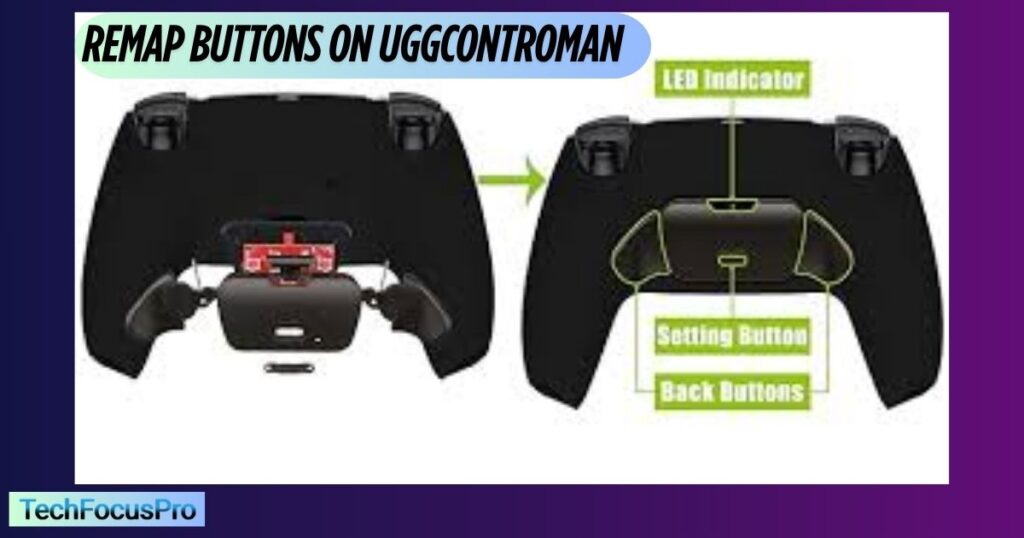
Button remapping is one of the best features of this controller. It lets you play faster and more comfortably.
Instead of adjusting your hands to the controller, you adjust the controller to your hands.
Step 1: Open the Software
Start the UGGControman software on your device.
Make sure your controller is connected. You should see it on the main screen.
Step 2: Go to Button Mapping
Look for the section called Button Mapping or Button Settings.
Click on it. You will now see a layout of your controller with all buttons.
Step 3: Select a Button
Click on the button you want to change.
A menu will appear with different actions. Choose the function you want to assign.
For example, you can set:
- Jump to a back paddle
- Crouch to another paddle
- Reload to a side button
Step 4: Save Your Changes
After making changes, click save.
Do not skip this step. If you exit without saving, your changes will be lost.
Step 5: Test In Game
Open your game and test the new layout.
Make sure everything feels natural. If something feels off, go back and adjust it.
Pro Tip for Back Paddles
Back paddles are made to keep your thumbs on the sticks.
In shooting games, a common setup is:
- Left paddle for jump
- Right paddle for crouch
This lets you move, aim, and react at the same time without lifting your thumbs.
It may feel strange at first. Give it some time. Once you get used to it, your gameplay will feel much smoother.
Button remapping is not something you do once and forget. Keep adjusting until it feels perfect for you.
How to Create and Use Custom Profiles
Custom profiles make your controller much smarter. Instead of changing settings again and again, you can save everything and switch in seconds.
This is very useful if you play different types of games.
What Is a Profile?
A profile is a saved set of settings.
It includes your button layout, stick sensitivity, trigger setup, and more. The UGGControman lets you store up to three profiles inside the controller.
You can switch between them anytime.
Step 1: Open the Software
Launch the UGGControman software and make sure your controller is connected.
Go to the Profiles section.
Step 2: Create a New Profile
Click on New Profile.
Give it a simple name like:
- FPS
- Racing
- Fighting
This helps you remember which setup is for which game.
Step 3: Customize Your Settings
Now adjust everything based on your game.
You can:
- Change button mapping
- Set stick sensitivity
- Adjust trigger response
- Add macros if needed
Take your time here. Small changes can make a big difference.
Step 4: Assign a Color
Each profile can have a different light color on the controller.
For example:
- Red for shooting games
- Blue for story games
- Green for racing
This helps you know which profile is active without opening the software.
Step 5: Save to Controller
Save the profile to the controller memory.
This step is important. It allows you to use the profile even when the app is not open.
How to Switch Profiles
You don’t need to stop your game.
Press and hold the profile button on the controller for a couple of seconds. It will switch to the next profile.
The LED color will change so you know which one is active.
Example Profile Ideas
For shooting games:
Use fast sensitivity and map jump and crouch to paddles.
For racing games:
Use smoother stick control and full trigger range for better speed control.
For fighting games:
Use quick inputs and set simple macros for combos.
Profiles save time and make your gameplay consistent. Once you set them right, you will not want to go back to default settings.
How to Adjust Sensitivity Curves
This is where your controller really starts to feel different.
Sensitivity curves control how your analog sticks react when you move them. Even small changes here can improve your aim and movement.
At first, it may feel confusing. But once you understand the basics, it becomes easy.
What Are Sensitivity Curves?
A sensitivity curve decides how fast your in game movement reacts to your stick movement.
For example, you move the stick a little. The game can respond slowly or very fast depending on the curve you choose.
Types of Sensitivity Curves
Most setups use three main types.
Linear Curve
This is the most natural setting. Your stick movement matches your in game movement directly. It feels smooth and predictable.
Aggressive Curve
This makes small movements much faster. It is useful for quick turns and fast aiming. Many competitive players prefer this for shooting games.
Precision Curve
This slows things down near the center. It gives better control for small movements. It is great for long range aiming or careful adjustments.
How to Change Sensitivity Curves
Open the UGGControman software and go to the sensitivity section.
Select the stick you want to adjust. Usually you will see left stick and right stick options.
Choose a curve type and apply it. You can also fine tune it based on your preference.
Save your changes before exiting.
Best Settings for FPS Games
A common setup is:
- Right stick on aggressive curve for fast aiming
- Left stick on linear for steady movement
This gives you both speed and control at the same time.
Important Tip
Do not just set it once and forget it.
Test your settings in a practice mode or training area. What feels good in the menu may feel very different in real gameplay.
Make small changes and test again. This is the best way to find your perfect setup.
Sensitivity curves can take your gameplay to another level. Once you get them right, your aim and movement will feel much smoother.
How to Set Up Trigger Dead Zones
Trigger settings may look small, but they can change how fast you react in a game.
Dead zone means how much you need to press a trigger before it activates. If it is set too high, you press more before the action happens. If it is low, the action happens almost instantly.
Why Trigger Dead Zones Matter
In fast games like shooters, even a tiny delay can affect your timing.
A lower dead zone helps your weapon fire faster. A higher dead zone gives more control and prevents mistakes.
So the right setup depends on the type of game you play.
How to Adjust Trigger Dead Zones
Open the UGGControman software and go to Trigger Settings.
You will see options for left trigger and right trigger.
There will be a slide for the dead zone. Move it to adjust how early or late the trigger responds.
After setting it, save your changes.
Best Settings Based on Game Type
For shooting games:
Keep the dead zone very low. This helps you shoot faster with less pressure.
For racing games:
Use a higher dead zone. This gives you smoother control over speed and braking.
For casual or story games. Keep it balanced. Not too fast and not too slow.
Hair Trigger Mode
UGGControman also offers a hair trigger option.
This means the trigger activates with very little press. It is great for fast reactions in competitive games.
But be careful. If it is too sensitive, you might press it by mistake.
Test Before You Finalize
After changing the settings, test them in a game.
Check how it feels when you shoot or accelerate. If it feels too fast or too slow, adjust it again.
Small changes can make a big difference here.
Getting your trigger settings right will make your gameplay feel quicker and more responsive.
How to Use Macros and Rapid Fire
Macros can save you a lot of effort. Instead of pressing multiple buttons, you press one and the controller does the rest.
This is very useful in fast games where timing matters.
What Is a Macro?
A macro is a set of actions recorded into one button.
For example, you can create a combo move or reload action and assign it to a single press. This makes your gameplay faster and more consistent.
What Is Rapid Fire?
Rapid fire allows a button to repeat automatically when you hold it.
This is helpful in games where you need to tap quickly again and again. Instead of tapping many times, you just hold the button.
How to Create a Macro
Open the UGGControman software and go to the Macro section.
Click on Create New Macro.
Now press the buttons you want in the sequence. The software will record each action.
You can also set the delay between each step. This helps you control timing.
Once done, save the macro.
Assign Macro to a Button
After creating the macro, assign it to any button or back paddle.
Save your settings and test it in your game.
When to Use Macros
Macros are useful in:
- Fighting games for combos
- Shooting games for quick actions
- Strategy games for repeated inputs
They help reduce effort and improve speed.
Important Note
Do not overuse macros.
Some games do not allow them in competitive modes. Always check the game rules before using them online.
Macros and rapid fire can give you an edge when used correctly. Start simple and test what works best for your play style.
Read More: How Much Is The Game Marshock200 on PC?
Advanced Settings for Power Users
If you want full control, this is where things get serious.
These settings are not required for everyone. But if you play competitively or want the best performance, they can make a real difference.
Take your time here. Small changes can improve your response and reduce delay.
Polling Rate
Polling rate controls how often your controller sends data to your device.
A higher rate means faster updates. This leads to quicker response in game.
For best performance, use a high polling rate when playing with a wired connection. If your system struggles, you can lower it slightly for stability.
Debounce Settings
Debounce controls how the controller handles quick button presses.
If it is set too high, inputs may feel slow. If it is too low, you might get double presses by mistake.
Adjust it carefully until your inputs feel clean and accurate.
Latency and Input Delay
UGGControman software gives you tools to check input delay.
You can monitor how fast your inputs are being registered. If you notice delay, switch to a wired connection and close background apps.
Avoid using USB hubs. Connect directly to your system for the best result.
Stick Fine Tuning
Beyond basic sensitivity, you can fine tune how your sticks behave at different points.
This helps you get very precise control. Especially useful for aiming in shooting games.
Make small adjustments and test after each change.
System Level Access
Some advanced options let you see how your controller interacts with your system.
This can help you find issues like input conflicts or lag spikes. It is useful if you want to fully optimize your setup.
Keep It Simple First
Do not change everything at once.
Start with basic settings. Once you are comfortable, then move to advanced options.
This way you will understand what each setting actually does.
Advanced settings can push your controller to its full potential. But only if you use them carefully.
Troubleshooting Common UGGControman Issues
Even a high end controller can run into small problems. The good thing is most issues are easy to fix.
Let’s go through the most common ones.
Controller Not Connecting
If your controller is not showing up, check the basics first.
Make sure the cable is working if you are using wired mode. Try a different USB port. If you are using Bluetooth, turn it off and on again.
Also restart the software and reconnect the controller.
Software Not Detecting Controller
Open the software again after reconnecting the controller.
If it still does not detect it, run the software as administrator. This helps in some systems.
You can also try reinstalling the software if needed.
Input Lag or Delay
Input lag usually happens due to connection issues.
For best performance, use a wired connection. Avoid USB hubs and connect directly to your system.
Close background apps that may slow things down.
Also check your polling rate. If it is too high for your system, lower it slightly.
Profile Not Saving
If your profile is not saving, make sure you clicked save before exiting.
Also check if the controller memory is full. You can delete old profiles and try again.
Running the software as administrator can also fix this issue.
Buttons Not Working Properly
This can happen if the firmware is outdated.
Check for updates in the software and install them.
You should also run calibration again to reset input values.
Software Installation Issues
If the software does not install, check your system requirements.
Allow all permissions during installation.
If your system blocks it, disable security prompts for a moment and try again.
Most problems can be fixed with simple steps. You do not need advanced knowledge.
Just go step by step and test after each fix.
Read More: How to Cancel Game Mopfell78
UGGControman vs Other Premium Controllers
If you are spending money on a controller, it makes sense to compare options. Let’s see how UGGControman stands against other popular choices.
Build and Technology
UGGControman uses Hall effect sensors. This is a big advantage.
Most controllers still use standard stick technology which can wear out over time. That leads to stick drift.
With Hall effect sensors, you get better accuracy and longer life. Your sticks stay stable even after heavy use.
Performance and Speed
UGGControman offers very fast response, especially in wired mode.
This makes it a strong choice for competitive gaming where every input matters.
Other controllers perform well too, but they may not match the same level of precision and consistency.
Customization
This is where UGGControman really stands out.
You get full control through its software. You can remap buttons, adjust sensitivity, create profiles, and fine tune settings.
Some other controllers offer customization, but not at this depth.
Back Paddles and Controls
UGGControman comes with four back paddles.
These help you play without moving your thumbs away from the sticks.
Other premium controllers also offer paddles, but the flexibility and setup options here feel more complete.
Platform Support
UGGControman works across multiple platforms like PC, PlayStation, and Xbox.
This makes it a good all in one option if you play on different devices.
Price Value
It sits in the same price range as other premium controllers.
But considering the features and customization, it offers strong value for serious players.
Final Verdict
If you want a controller that gives you full control and long term reliability, UGGControman is a strong choice.
It is built for players who care about performance and want to go beyond default settings.
FAQs About How to Use Controller UGGControman
Is UGGControman software free?
Yes. The software comes with the controller. You do not need to pay extra to use its features.
What platforms does UGGControman support?
It works with PC, PlayStation 5, and Xbox Series consoles.
You can also connect it to mobile devices in some cases using Bluetooth.
Is UGGControman safe to use?
Yes. It is developed by UnderGrowthGames and designed for gaming use.
As long as you download the software from the official source, it is safe.
Can I use UGGControman with other controllers?
The software can work with some third party controllers.
But to use all features like full customization and hardware support, it is best to use the official UGGControman controller.
How many profiles can I save?
You can save up to three profiles directly on the controller.
You can switch between them anytime without opening the software.
Do I need the software every time I play?
No. Once your settings are saved to the controller, you can use it without opening the app again.
What is the best setup for beginners?
Start with simple settings.
Use default sensitivity, map one or two important actions to back paddles, and test in game. Once you get used to it, then adjust more settings.
Conclusion
UGGControman is more than just a controller. It gives you full control over how you play.
From basic setup to advanced settings, everything is designed to improve your speed, accuracy, and comfort. The key is not to rush. Start with simple changes, test your setup, and slowly improve it over time.
Once you get used to features like button remapping, profiles, and sensitivity control, you will notice a clear difference in your gameplay. Things feel smoother, faster, and more natural.
If you are serious about gaming, taking the time to set up your controller properly is worth it.
Now it’s your turn. Set up your UGGControman, create your first profile, and start playing with settings that actually match your style.