Is your Android phone getting slow? Apps take too long to open. Scrolling is not smooth. Sometimes the screen even stops for a few seconds. This can be very annoying, especially when you need your phone for daily use.
This problem happens to almost every phone over time. As you install more apps, save more photos and videos, and use your phone every day, it starts to slow down. Some apps keep running in the background, storage fills up, and extra files accumulate. All of this makes your phone work harder.
Many people think they need to reset their phone to fix this. But that is not always the best choice. A reset removes your data and apps, and you have to set everything up again.
The good news is you can fix a slow phone without resetting it.
In this guide, you will learn simple and useful ways to make your Android phone faster without losing your data. These tips are easy to follow and work on most Android phones. Whether your phone is a little slow or very laggy, these steps can help improve its speed.
If you want more simple guides and helpful Android tips, you can explore our website.
Why Your Android Phone Is Slow
If your Android phone feels slow, it’s usually not just one problem. It’s a mix of small things that build up over time. As you keep using your phone, install apps, and save files, it starts to get overloaded. This makes your phone slower and less responsive.
It’s important to understand what is causing the problem. Once you know what’s slowing your phone down, it becomes much easier to fix it.
Common Reasons
Too Many Background Apps
Apps don’t fully close when you exit them. Many keep running in the background and use RAM. When too many apps are running, your phone has less power to run what you’re doing, which leads to lag.
Low Storage Space
Your phone needs free space to run smoothly. When storage is almost full, it cannot properly handle temporary files. This makes apps slower to open and can cause freezing.
Outdated Software
Running an old Android version or outdated apps can hurt performance. Updates usually fix bugs, improve speed, and make apps run better.
Heavy Apps and Games
Some apps use excessive system resources. Games, editing apps, and social media platforms can be demanding. On low or mid-range phones, they can slow down the entire device.
Cache Buildup
Cache is temporary data stored by apps. It helps apps load faster, but over time, it can become cluttered. Too much cache can actually slow your phone down rather than help it.
Battery Health Issues
If your battery is weak or old, your phone may reduce performance to save power. This is why older phones often feel slower, even if they were fast before.
Malware or Unnecessary Apps
Some apps run in the background without your knowledge. They use resources, show ads, and slow down your device. Installing apps from unknown sources increases this risk.
If you play games on your phone, these issues can affect performance even more. Here’s a simple guide on how to optimize your phone for the best gaming experience.
Restart Your Phone First (Quick Fix)
If your Android phone feels slow, the first thing you should do is restart it. It’s the easiest and quickest way to fix small problems.
When your phone stays on for many days, apps keep running in the background. This uses memory and makes your phone slow. Restarting clears these temporary issues and gives your phone a fresh start.
The best part is it’s very simple. Just turn your phone off and then turn it back on. In many cases, you will notice your phone becomes faster right away.
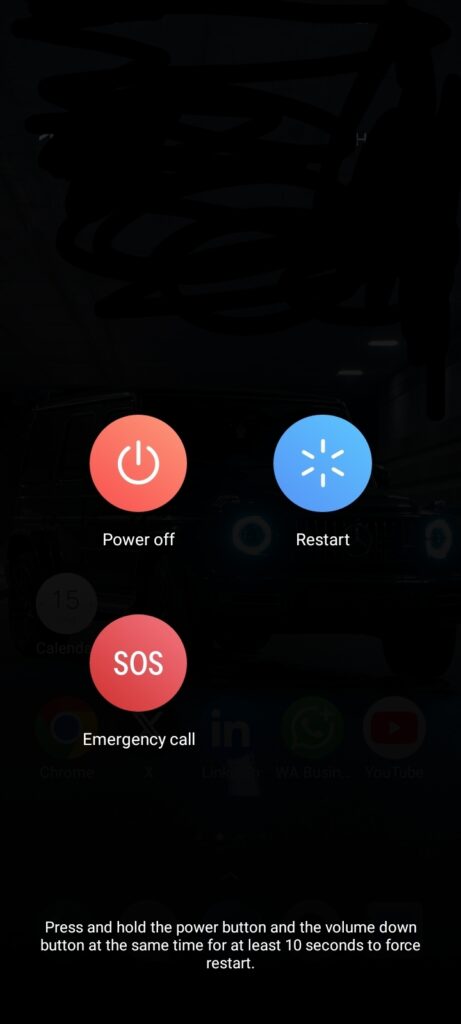
Even though it’s a basic step, it works really well for fixing lag, app freezes, and slow response times. That’s why you should always try this first before doing anything else.
Free Up Storage Space
Keeping enough free space on your Android phone is very important for good performance. When your storage is almost full, your phone becomes slow because it does not have enough space to run apps properly.
Apps need space to create temporary files, and your phone also needs extra space to work smoothly. If there is not enough space, you may notice lag, slow app opening, or even freezing.
To prevent this, try to keep at least 20 to 30 percent of your storage free. This gives your phone enough room to work better.
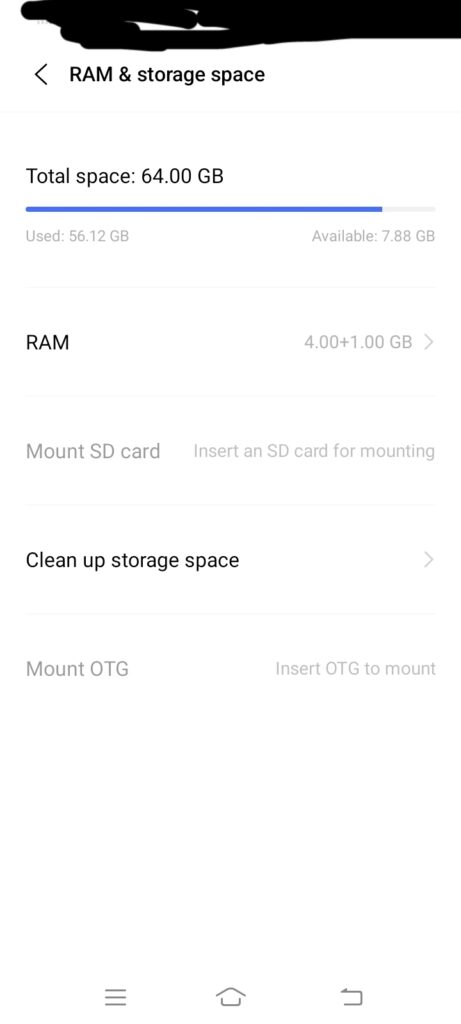
For example, if your phone has 64 GB of storage, try to keep around 12 to 18 GB free. This simple habit can make your phone faster and smoother.
What to Delete
To free up storage, start by removing things you no longer need. This is the quickest way to create space and improve performance.
- Old photos and videos
Media files take up the most space. Delete blurry, unwanted, or already backed-up photos and videos. - Unused apps
Apps you don’t use still occupy storage and sometimes run in the background. - Duplicate files
Multiple copies of the same image, video, or document waste space without any benefit. - Large downloads
Files like movies, APKs, and documents often sit in the Downloads folder and take up a lot of space.
Tools
You don’t have to clean everything manually. These tools make the process quick and easy:
- Built-in storage cleaner
Most Android phones have a built-in feature that scans and suggests junk files, unused apps, and large files you can safely delete - Google Files app
A free and simple app that helps you:- Find large files
- Remove duplicates
- Clear junk files with one tap
Clear Cache (Not Data)
Clearing the cache is a quick and safe way to speed up your phone. It removes temporary files created by apps while they work, but it does not delete your personal data, such as accounts, messages, or settings.
Cache and data are different. Cache is just temporary files that help apps open faster, while data includes your personal information inside the app. That’s why clearing cache is safe, but clearing data can reset the app.
Over time, the cache builds up and becomes old. Instead of helping, it starts taking up space and slowing down your phone. This can cause lag, slow app opening, and small problems. Clearing this extra cache helps your phone run more smoothly.
Steps to Clear Cache
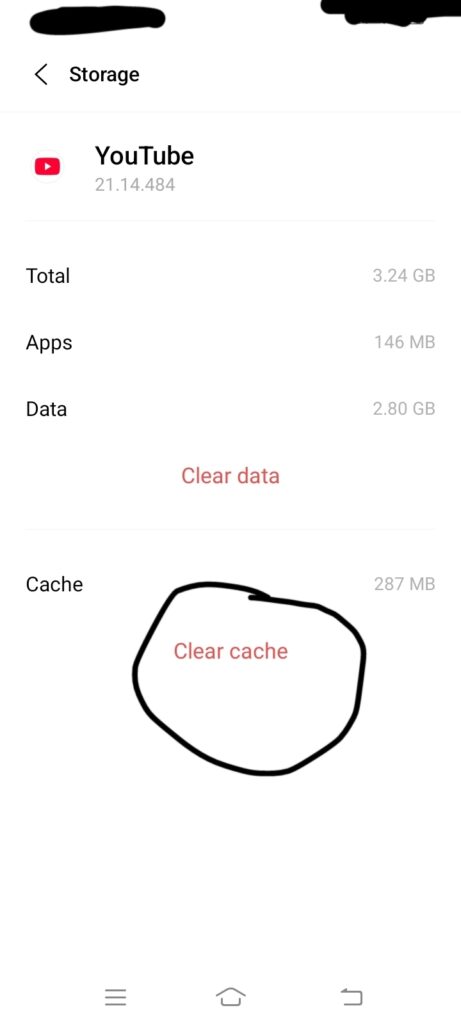
Clear cache for individual apps
- Open Settings
- Go to Apps or App Management
- Select the app
- Tap Storage
- Press Clear Cache
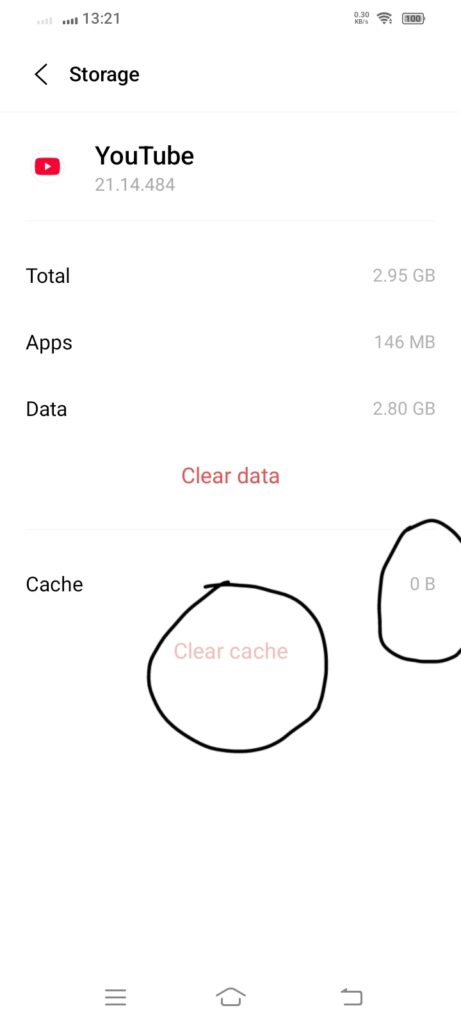
Clear system cache (if available)
- Use your phone’s built-in cleaner to remove junk files.
- Some devices also allow clearing the system cache through advanced settings.
Clearing the cache regularly is a simple habit that can keep your phone fast without affecting your data.
Remove or Disable Unused Apps
Unused apps are one of the biggest reasons your Android phone slows down. Even if you don’t open them, many apps still run in the background and use system resources like RAM, storage, and battery.
These apps may:
- Sync data in the background
- Send notifications
- Use memory without you noticing
All of this puts extra load on your phone and reduces performance.
Focus On Removing These Apps
- Bloatware apps
These are pre-installed apps that come with your phone. You may never use them, but they still take up space and resources. - Rarely used apps
If you haven’t used an app in weeks or months, it’s better to remove it. - Heavy apps (games, editing apps)
Games and editing apps use a lot of storage and RAM. If you don’t use them often, they can slow down your phone.
Limit Background Apps
Background apps are one of the main reasons your Android phone becomes slow. Even when you are not using them, many apps keep running in the background. They use memory, battery, and power, which makes your phone slower.
When too many apps are running in the background, your phone has less power for the task you are doing. This can cause lag, slow app switching, and delayed responses.
Methods to Limit Background Apps
- Close recent apps properly: Open your recent apps screen and clear apps you are not using. This frees up RAM and gives your phone more power for active tasks.
- Restrict background activity: Some apps keep running and syncing data all the time. You can limit this:
- Go to Settings > Apps
- Select the app
- Tap Battery
- Choose Restrict or limit background usage
This stops the app from using resources when you’re not using it.
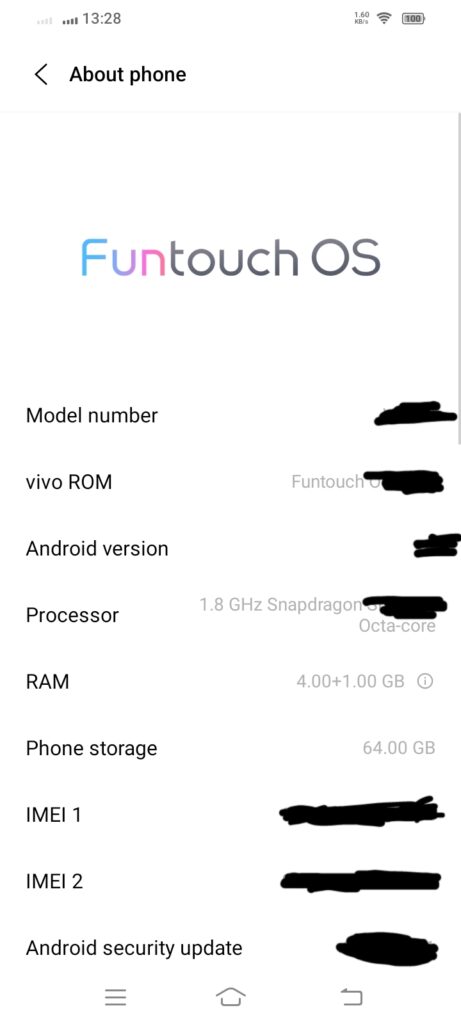
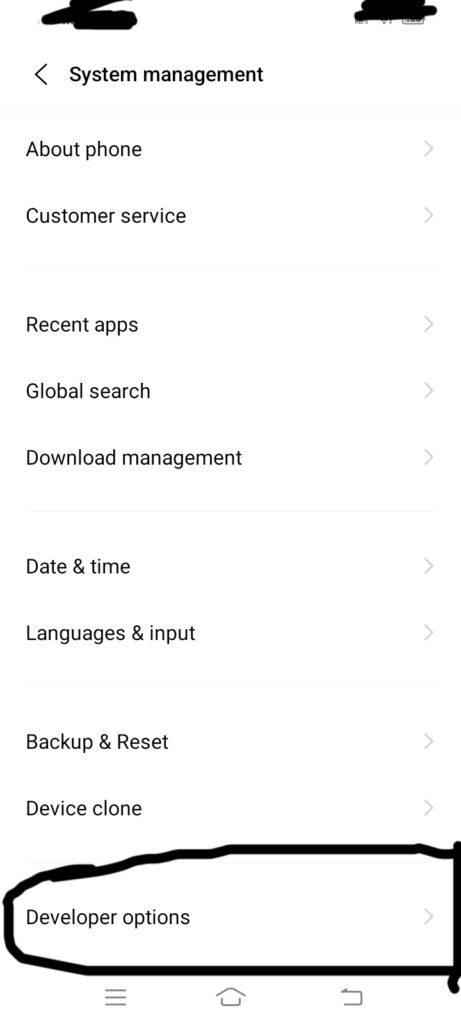
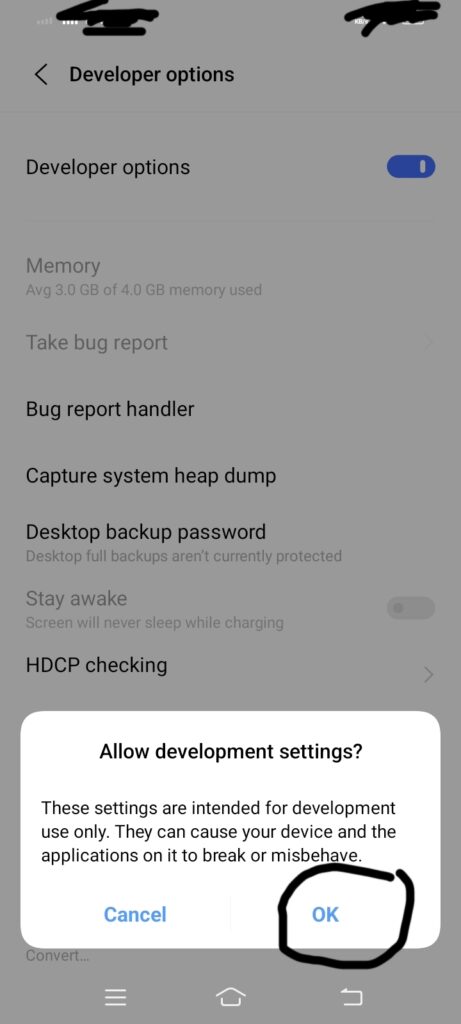
- Use Developer Options (limit background processes): For more control, you can limit how many apps run in the background:
- Go to Settings > About Phone
- Tap Build Number OR Software version multiple times to enable Developer Options
- Open Developer Options
- Find the Background process limit
- Set a limit (like 2–3 processes)
Turn Off Animations (Instant Speed Boost)
Animations make your phone look smooth when you open apps, switch screens, or scroll. But they also use extra power in the background. On older or slower phones, this can cause lag.
When you reduce or turn off animations, your phone focuses more on speed instead of visual effects. This makes everything feel faster and more responsive, even though the phone itself stays the same.
Steps to Turn Off Animations
Enable Developer Options
- Open Settings
- Go to About Phone
- Tap Build Number 5–7 times until Developer Options are enabled.
Set animation scales to 0.5x or off
- Go to Settings > Developer Options
- Find these options:
- Window animation scale
- Transition animation scale
- Animator duration scale
- Set them to 0.5x for smoother speed or Off for maximum speed.
Update Your Android System and Apps
Keeping your Android system and apps updated is important for speed and smooth performance. Many people ignore updates, but they help fix problems that can slow down your phone. Updates often improve speed, fix bugs, and make apps work better.
If your system is outdated, it may struggle to run new apps or features. This can cause lag, crashes, or apps not working properly. The same goes for apps, as developers update them to make them faster and more stable. If you keep using old versions, they may become slow or stop working well.
Updates also make your phone more secure and protect it from harmful apps. So, updating your phone not only improves speed but also keeps it safe.
Use Lite or Alternative Apps
Heavy apps are one of the main reasons Android phones become slow. Apps like Facebook, Instagram, Snapchat, and Chrome use a lot of memory, storage, and data. They keep running in the background, sending notifications and syncing even when you are not using them. With limited power, this can cause lag, slow loading, and battery drain on android devices.
A simple solution is to use Lite or alternative apps. Lite apps are smaller, faster, and use fewer resources. They use less space, consume less data, and run smoothly even on older phones.
For example, you can use Facebook Lite instead of the full app, or try a lighter browser that loads pages faster without heavy features.
Disable Auto-Sync and Background Services
Auto-sync and background services keep your apps updated, but they also keep running constantly. Apps like Gmail, Google Drive, contacts, and social media keep syncing data even when you are not using them. This uses memory, battery, and internet, which can slow down your phone.
By turning off auto-sync for apps you don’t need all the time, you reduce this extra load. Your phone will stop checking for updates repeatedly, which helps it run faster and more smoothly. You can keep sync only for important apps and turn it off for others.
You can turn this off from your phone settings:
- Go to Settings > Accounts (or Users & Accounts)
- Tap on your Google account or any account
- Select Account sync
- Turn off sync for apps you don’t need
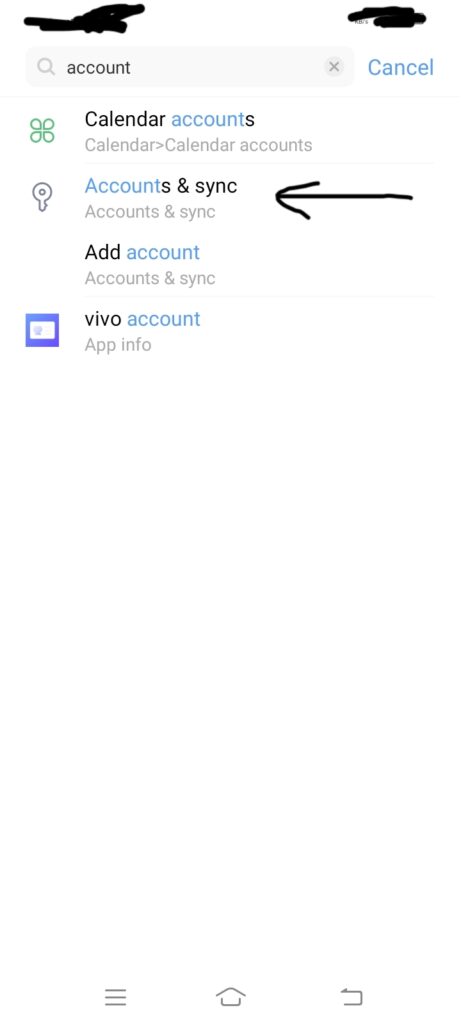
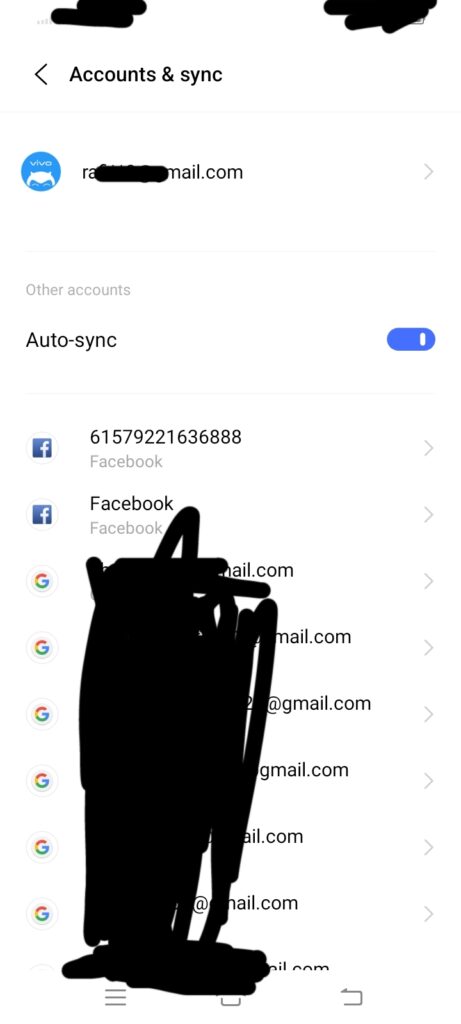
You can also control background activity for specific apps:
- Go to Settings > Apps
- Select the app
- Tap Battery
- Choose Restrict or limit background usage
Managing auto-sync and background services helps free up system resources and improves your phone’s speed without removing any apps.
Clean Home Screen and Widgets
A messy home screen can slow down your Android phone more than you think. Widgets, live wallpapers, and too many icons keep updating constantly, which uses memory and power. This can make your phone feel slow, especially when moving between screens.
By keeping your home screen clean and simple, your phone can run faster. Remove extra widgets, such as weather or news, that update frequently.
Avoid live wallpapers and use a simple background instead. Also, keep only important apps on the home screen and move the rest into folders or the app drawer.
Check for Malware or Junk Apps
Sometimes your phone becomes slow because of harmful or unnecessary apps running in the background. These apps may not be easy to notice, but they use memory, storage, and the internet without you knowing. Because of this, your phone may lag, show random ads, or lose battery quickly.
These apps often come from unknown sources or third-party downloads. They keep running in the background, affecting your phone’s performance.
To fix this, go to Settings > Apps and check for apps you don’t recognize.
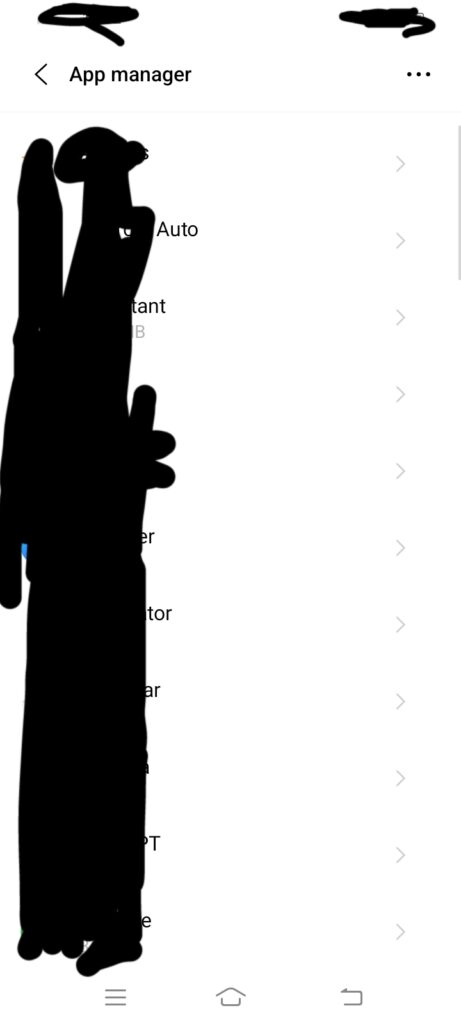
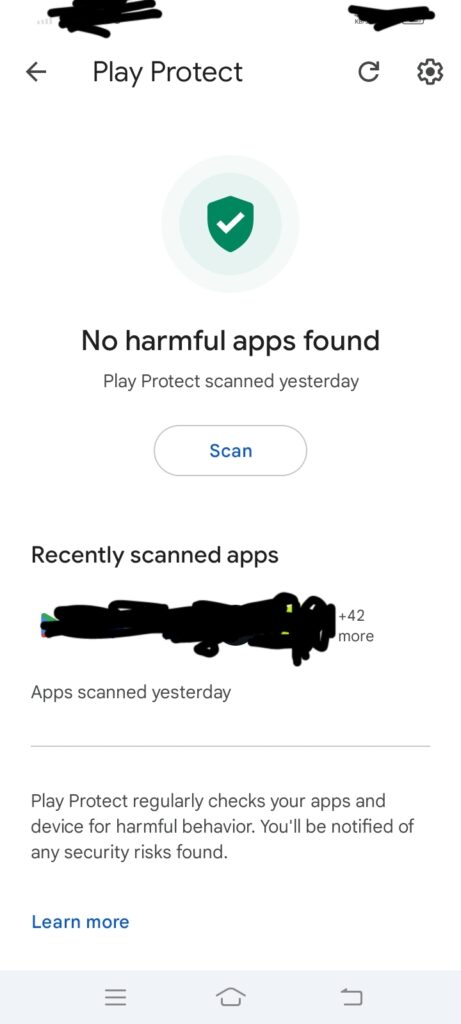
Remove anything suspicious. You can also use Google Play Protect in the Play Store to scan your phone for harmful apps.
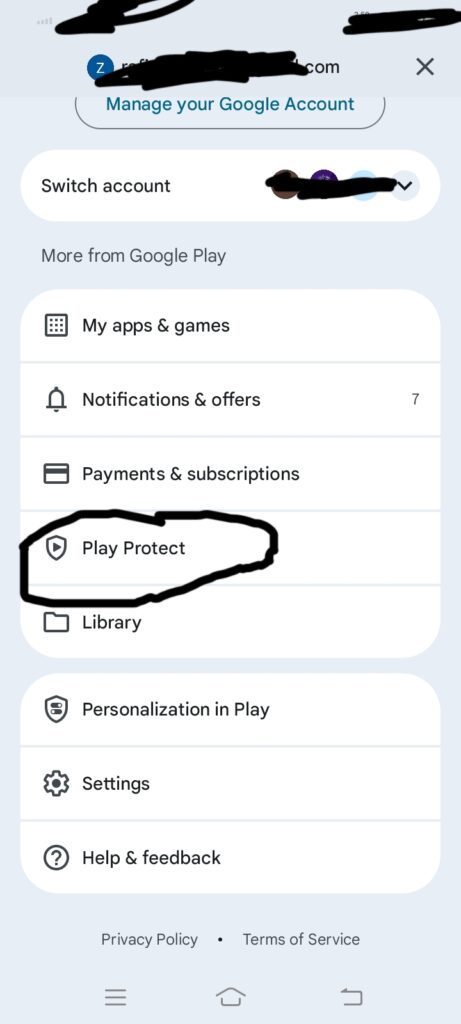
Optimize Battery Settings
Your phone’s battery settings can affect how fast it runs. Many Android phones try to save battery by reducing speed and limiting background activity. While this helps battery life, it can also make your phone feel slow.
If your phone is always in power-saving mode, it may reduce performance, limit apps, and delay background tasks. This can cause lag, slow app opening, and late notifications.
To fix this, go to Settings > Battery and check your battery mode.
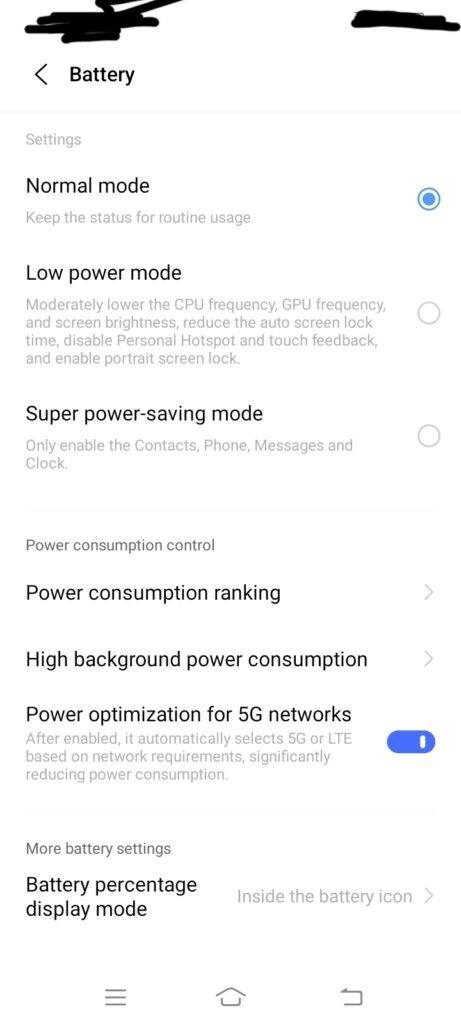
Turn off extreme power-saving mode for better speed. You can also check battery usage to see which apps use the most power and limit them if needed.
Use Built-in Performance Mode (If Available)
Many Android phones have a built-in performance mode that helps speed up your phone when needed. It increases your phone’s power and lets apps run more freely, so everything feels smoother. This is useful when your phone feels slow or when you are using heavy apps like games or editing tools.
When you turn on performance mode, your phone may use more battery, but you will get faster speeds, quicker app opening, and better multitasking. Some phones also have options like High Performance or Game Mode for extra speed.
You can find this setting in Settings > Battery or Settings > Device Care / Performance, depending on your phone. Turning it on when needed can quickly improve your phone’s performance.
Advanced Tips (Optional but Powerful)
If you’ve tried the basic fixes and still want better performance, these advanced tips can help you get more speed out of your Android phone. They are optional, but very effective, especially for older or low-storage devices.
Use SD Card for Storage (if supported)
If your phone supports an SD card, you can move photos, videos, and even some apps to it. This frees up internal storage, which is important for smooth performance. The more space you free inside your phone, the better it will run. You can move files via Settings > Storage or use a file manager app.
Reduce Auto-Start Apps
Some apps automatically start when you turn on your phone. These apps run in the background and slow down performance from the start. You can control this by going to Settings > Apps > Permissions / Auto-start (varies by device) and turning off auto-start for unnecessary apps. This helps your phone boot faster and run more smoothly.
Install a Lightweight Launcher
Your phone’s default launcher (home screen interface) can sometimes be heavy. Switching to a lightweight launcher can improve speed and responsiveness. Apps like Nova Launcher or other minimal launchers are faster, smoother, and use fewer resources. They also give you more control over your home screen without slowing your phone down.
When Nothing Works
If you have tried all the methods and your Android phone is still slow, the problem may be deeper than simple fixes. Sometimes the issue is not related to apps or storage, but to the phone’s age and hardware limits. As a phone gets older, it becomes harder for it to handle new apps, updates, and features. This can affect performance even if everything is cleaned and optimized.
In such cases, basic improvements may not make a big difference. You can try a factory reset as a final step to clear hidden issues and start fresh. However, if the phone is too old, the performance may still not improve much. In that situation, upgrading to a newer device becomes the more practical and long-term solution.
FAQs
Why is my Android phone slow, even with good storage?
Even if your storage is free, your phone can still be slow due to limited RAM, too many background apps, or software issues. Apps running in the background use memory and processing power, which can cause lag. Outdated software or bugs can also affect performance.
Does clearing the cache speed up the phone?
Yes, clearing the cache can help improve speed. It removes temporary files that may have become outdated or too large over time. This helps apps run more smoothly and can fix minor lag or glitches.
How often should I clean my phone?
You should clean your phone regularly to maintain performance. A good routine is once a week or at least every two weeks. This includes clearing the cache, deleting unnecessary files, and removing unused apps.
Can apps slow down Android?
Yes, apps can slow down your phone, especially heavy or poorly optimized ones. Some apps use a lot of RAM, storage, and battery, while others keep running in the background. This can reduce overall performance.
Is a factory reset the only solution?
No, a factory reset is not the only solution. Most performance issues can be fixed with simple steps such as freeing up storage, clearing the cache, updating apps, and limiting background activity. Reset should only be the last option if nothing else works.
Conclusion
A slow Android phone does not always mean you need to reset it. In most cases, simple steps like freeing up storage, deleting unused apps, stopping background apps, and updating your phone can make a big difference. These small actions can make your phone faster without removing your important data.
The key is to take care of your phone regularly. If you keep it clean, up to date, and free of extra apps, it will stay fast longer. If nothing works, you can consider a reset or getting a new phone. But for most people, these simple fixes are enough to make the phone work smoothly again.