Browser extensions can make browsing easier. They add helpful features like password saving, dark mode, shopping coupons, or SEO insights. Many people install several extensions without thinking much about their impact.
But not all extensions are lightweight. Some run scripts on every page you visit. Others keep working in the background. This can use a lot of CPU power and memory, which may slow down Chrome and increase page loading time.
When too many heavy extensions are active, your browser may feel sluggish. Pages take longer to open, tabs consume more RAM, and the overall browsing experience becomes slower.
In this guide, you will learn which browser extensions are the most performance intensive, why they slow down Chrome, and how you can identify and fix them to keep your browser running smoothly.
What Are Performance Intensive Browser Extensions
Browser extensions add extra features to Chrome and other browsers. They can block ads, manage passwords, apply dark mode, or help with SEO tasks. While many extensions are lightweight, some use a lot of system resources.
These are known as performance intensive browser extensions because they require more CPU power, memory, and background activity than normal extensions.
Understanding how these extensions work can help you keep your browser faster and more stable.
Simple Definition
Performance intensive browser extensions are add-ons that consume high system resources while running in the browser. They may use more CPU power, RAM, or network activity compared to other extensions.
In simple words, these extensions place a heavier load on your browser. When several of them run at the same time, they can slow down your system and reduce browsing performance.
Why These Extensions Exist
Many extensions perform complex tasks to deliver their features. For example, some tools scan every webpage you open. Others analyze page content, inject scripts, or modify how a website looks.
Some extensions also connect with external services to fetch data or process requests. All of these actions require extra processing power. The more work an extension performs in the background, the more resources it uses.
How They Affect Browser Speed
Performance heavy extensions can affect your browser in several ways.
Increase page load time
Some extensions run scripts before or after a page loads. This extra processing can delay how quickly a webpage appears.
Consume memory across many tabs
Each open tab may trigger the extension again. Over time this increases RAM usage, especially when many tabs are active.
Slow browser response
When CPU and memory usage rise, the browser may become less responsive. You may notice slower scrolling, lag when switching tabs, or delays when opening new pages.
Explore More: What is Technology Update Jotechgeeks?
Why Browser Extensions Can Slow Down Chrome
Browser extensions improve functionality but they also add extra work for the browser. Many extensions run processes in the background or interact with every page you open.
When several extensions are active, this extra activity can slow down Chrome and increase resource usage.
Understanding why this happens can help you manage extensions more carefully.
Background Scripts Running Constantly
Some extensions keep running in the background even when you are not using them. These background scripts monitor websites, check updates, or stay ready to perform actions at any time.
Because they stay active all the time, they continue to use CPU and memory. When multiple extensions run background processes together, the overall load on the browser becomes higher.
Heavy JavaScript Processing
Many extensions rely on JavaScript to analyze webpages and provide features. For example, some tools scan the content of a page, track elements, or add additional functionality.
This constant processing increases the workload for the browser. When scripts run on every page you visit, Chrome needs more CPU power to handle these tasks.
Network Routing and External Requests
Some extensions communicate with external servers to perform their functions. For example, tools that provide security checks, analytics, or online services may send requests to remote systems.
These extra network requests can delay page loading because the browser must wait for responses before finishing certain tasks.
DOM and CSS Modifications
Certain extensions change how websites look or behave. They may adjust page styles, add buttons, or modify layout elements.
To do this, the extension interacts with the page structure and styling. This additional processing happens after the page loads and can add small delays, especially on complex websites.
Signs an Extension Is Slowing Down Your Browser
Sometimes Chrome becomes slow even when your internet connection is fast. In many cases the problem is not the browser itself but the extensions running inside it. When an extension uses too many resources, it affects how smoothly the browser works.
Here are some common signs that an extension may be causing performance issues.
Chrome Takes Longer to Load Pages
One of the first things users notice is slower page loading. Websites that normally open quickly may start taking longer to appear.
This can happen when extensions run scripts or scan the page before it fully loads. The extra processing adds small delays which become noticeable when browsing multiple sites.
High CPU Usage
Another clear sign is sudden CPU spikes while using Chrome. Your computer may become warmer or the fan may start running more often.
Some extensions analyze every webpage or run background tasks continuously. This increases the workload on the CPU and affects overall system performance.
Too Much Memory Consumption
If Chrome starts using a large amount of RAM, extensions may be the reason. Each open tab can trigger extension activity again.
Over time this increases memory usage, especially if many tabs are open. Systems with limited RAM may start feeling slower because of this.
Browser Freezes or Lags
When extensions consume too many resources, the browser may stop responding smoothly. Scrolling can feel delayed and switching between tabs may take longer than usual.
In some cases Chrome may briefly freeze while loading pages or running extension scripts. This is a strong sign that one or more extensions are using too many resources.
Read More: The Difference Between SOC 2 Type I and Type II Reports
Top 10 Most Performance Intensive Browser Extensions
Many browser extensions offer useful features that improve productivity, privacy, or online shopping. However, some of these tools run complex scripts, analyze webpages, or process data in the background. Because of this, they can use a large amount of CPU and memory.
Below are some of the most performance intensive browser extensions that are known to slow down Chrome if too many of them are active at the same time.
VPN Browser Extensions
VPN browser extensions are popular for protecting privacy and accessing restricted websites. They work by routing your internet traffic through remote servers before it reaches the website you want to visit.
This extra routing process adds another step to every request your browser makes. As a result, pages may take longer to load because the data has to travel through the VPN server first.
Some VPN extensions also run background checks to maintain secure connections. These processes increase network activity and can use additional CPU resources. When the extension stays active across many tabs, the overall browsing speed may decrease.
Dark Reader

Dark Reader is a popular extension that adds dark mode to websites that do not support it. Many users install it to reduce eye strain, especially when browsing at night.
To create the dark theme, the extension changes the styles and colors of each webpage you open. It adjusts elements like background colors, text, images, and page layout so the site appears in dark mode.
This process happens every time a page loads. The extension must analyze the page structure and apply new CSS rules. On simple websites the impact may be small. But on complex pages with many elements, the extra processing can slow down page rendering and increase CPU usage.
Ubersuggest Extension
The Ubersuggest extension is popular among marketers and SEO professionals. It shows helpful data such as keyword ideas, search volume, domain metrics, and traffic insights directly on webpages.
To provide this information, the extension scans the page you are visiting and connects with external data sources. It then loads extra scripts that analyze the content and display marketing metrics.
Because this process runs on many pages, it adds additional work for the browser. The extra scripts and data requests can increase processing time and slightly slow down page loading, especially when several extensions are active at the same time.
Evernote Web Clipper

Evernote Web Clipper helps users save webpages, articles, or research directly into their notes. It is useful for students, writers, and anyone who collects information from different websites.
Before saving a page, the extension analyzes the content to understand what should be clipped. It looks at the page structure, text sections, images, and layout so it can organize the saved content properly.
This analysis requires scripts to run on the page. The extension processes the content before sending it to your notes. While this feature is helpful, the extra processing can add some load to the browser, especially when many tabs are open.
Honey or Capital One Shopping
Honey and Capital One Shopping are popular extensions that help users find discount codes while shopping online. They automatically search for coupons and apply them at checkout to help users save money.
To do this, the extension scans shopping websites and checks available deals in the background. It analyzes product pages, detects checkout forms, and searches its database for valid coupon codes.
This constant scanning requires scripts to run on many e-commerce sites. As a result, the browser performs extra processing while loading these pages. When several shopping tabs are open, the extension may increase CPU usage and slightly slow down page performance.
Klarna Pay Later

Klarna Pay Later is a payment extension that helps users shop online and split their payments over time. It connects with many e-commerce websites and offers financing options during checkout.
To provide this feature, the extension integrates with shopping pages and detects when users are viewing products or completing a purchase. It loads additional scripts to display payment options, offers, and reminders.
Because these scripts run on many shopping websites, they add extra processing during page loading. While the impact may not always be obvious, the added activity can increase resource usage and slightly slow down browser performance when multiple extensions are active.
Trancy AI Subtitles
Trancy AI Subtitles is designed to generate subtitles and translations for online videos. It helps users understand video content by showing captions in different languages.
To provide this feature, the extension analyzes the video player and the surrounding page elements. It processes audio or text data and then generates subtitles that appear while the video plays.
This kind of real time processing requires additional scripts and background activity. The browser needs to handle both the video playback and the subtitle generation at the same time. Because of this extra work, AI subtitle extensions can increase CPU usage and slightly slow down browser performance.
Monica AI Copilot
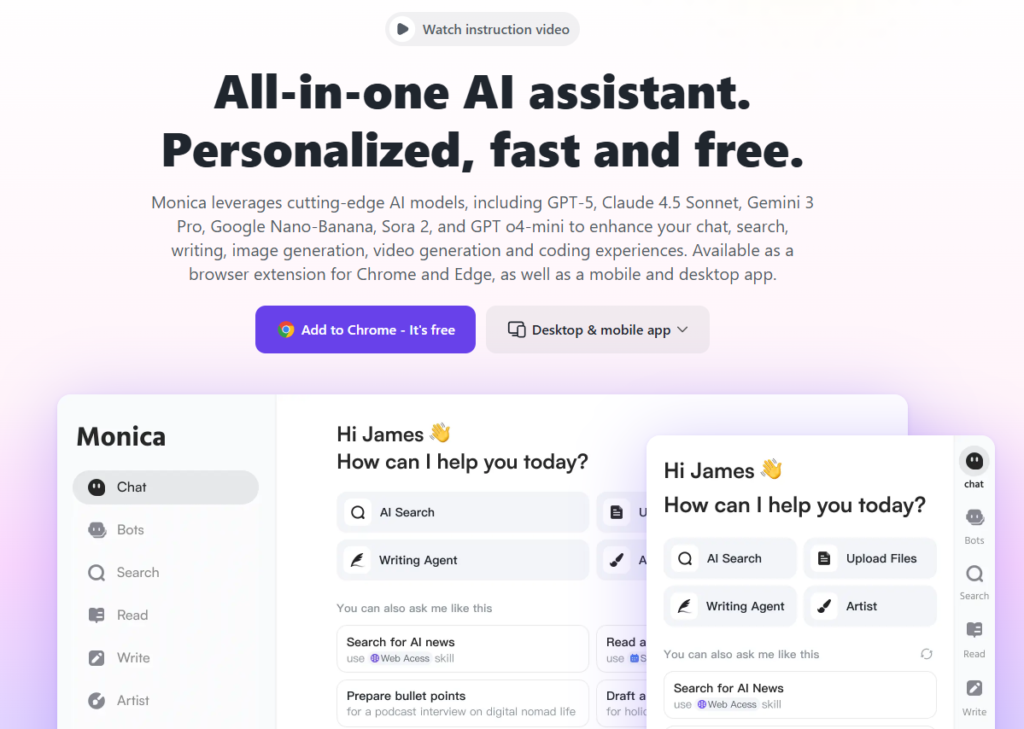
Monica AI Copilot is an AI assistant extension that helps users write emails, generate content, summarize text, and answer questions directly inside the browser.
To provide these features, the extension scans text fields and reads parts of the webpage where users may need assistance. It detects forms, chat boxes, and content areas so it can offer suggestions or AI responses.
This process requires scripts to run while pages are open. The extension may also connect with external AI services to process requests. Because it analyzes website content and user input, it can increase CPU usage and add extra workload to the browser, especially when many tabs are active.
Ghostery Tracker Blocker
Ghostery is a privacy extension that helps users block trackers and protect their online activity. It identifies scripts and tracking technologies that websites use to collect data about visitors.
To do this, the extension checks each page you open and scans it for tracking elements. It compares the detected scripts with its tracker database and blocks the ones that match.
This monitoring happens every time a page loads. The extension runs background processes to analyze website requests and block unwanted trackers. While this improves privacy, the extra scanning and filtering can add small processing tasks for the browser.
LastPass Password Manager
LastPass is a popular password manager that helps users store and autofill login details on different websites. It saves time by filling usernames and passwords automatically when a login page appears.
To make this work, the extension checks webpages for login forms and input fields. When it detects a sign in page, it prepares to autofill saved credentials. It may also verify accounts, suggest strong passwords, or sync data with the user’s account.
These actions require scripts to run on many websites. Because the extension interacts with login forms across pages and tabs, it can add extra processing inside the browser. When several tabs are open, this activity may increase memory usage and slightly affect browser performance.
How to Check Which Extension Is Using the Most Resources
If Chrome starts feeling slow, the next step is to find out which extension is causing the problem. Some extensions quietly use CPU and memory in the background, so it is helpful to check their activity.
Here are a few simple ways to identify the extensions that consume the most resources.
Using Chrome Task Manager
Chrome has a built in task manager that shows how much CPU and memory each tab and extension is using.
To open it, press Shift + Esc while Chrome is running. A small window will appear with a list of active tabs, extensions, and processes.
Look at the CPU and memory columns to see which extensions are using the most resources. If one extension shows unusually high usage, it may be affecting browser performance.
Testing Extensions in Incognito Mode
Another simple method is to test Chrome in Incognito mode. Most extensions are disabled by default in this mode.
Open an incognito window and visit a few websites. If pages load faster and the browser feels smoother, an extension may be responsible for the slowdown.
You can then disable extensions one by one in the extension settings to find the exact one causing the issue.
Monitoring Extension Activity
Some browser tools help monitor how extensions behave. These tools analyze resource usage and show which extensions are active on certain pages.
They can highlight extensions that run heavy scripts or use too much memory. Monitoring tools make it easier to identify performance issues and decide which extensions should be removed or limited.
How to Fix Performance Issues Caused by Extensions
If browser extensions start slowing down Chrome, the good news is that the problem is usually easy to fix. A few small changes can reduce resource usage and make browsing faster again.
Here are some practical steps you can take.
Remove Unused Extensions
Many users install extensions and forget about them. Over time these unused tools stay active and continue running in the background.
If you no longer use an extension, it is better to remove it. This reduces unnecessary processes and frees up CPU and memory for the browser.
Limit the Number of Extensions
Each extension adds extra work for the browser. When too many extensions run together, they increase the overall processing load.
Keeping only a few essential extensions helps Chrome run more smoothly. Fewer extensions mean fewer scripts, less background activity, and better browser performance.
Disable Extensions on Certain Sites
Some extensions allow you to control where they are active. Instead of running on every website, they can be limited to specific pages.
This reduces the number of times the extension runs its scripts and helps improve page loading speed on other sites.
Use Lightweight Alternatives
Not all extensions are built the same way. Some tools are optimized and use fewer resources while providing similar features.
If an extension consumes too much CPU or memory, consider replacing it with a lighter alternative that performs the same task.
Review Extensions Regularly
It is a good habit to review your extensions from time to time. Updates or new features can change how an extension behaves.
Checking your extensions occasionally helps you identify tools that are no longer needed or that may be affecting browser performance.
Frequently Asked Questions
Do browser extensions slow down Chrome?
Yes, some browser extensions can slow down Chrome. Many extensions run scripts on webpages or work in the background to provide their features. When several heavy extensions are active, they can increase CPU usage and memory consumption. This may cause slower page loading and reduced browser performance.
How many extensions should I install in Chrome?
There is no exact number, but it is usually better to keep only the extensions you really need. Many users keep around 5 to 10 essential extensions for daily tasks. Limiting the number of extensions helps reduce background activity and keeps the browser running smoothly.
Which type of extensions consume the most resources?
Extensions that analyze webpages or process data often use more resources. Examples include VPN tools, AI assistants, dark mode extensions, coupon finders, and some SEO tools. These extensions may run scripts on every page, which increases CPU and memory usage.
How can I find a heavy extension in Chrome?
You can check this using Chrome Task Manager. Press Shift + Esc while Chrome is open to see a list of running tabs and extensions. The task manager shows how much CPU and memory each extension is using, which helps you identify the ones consuming the most resources.
Is it better to remove unused extensions?
Yes, removing unused extensions is a good practice. Even when you are not actively using them, some extensions still run background processes. Removing extensions you do not need reduces resource usage and helps keep Chrome faster and more stable.
Conclusion
Browser extensions can make browsing more convenient. They add helpful features such as password management, shopping discounts, SEO insights, and dark mode. However, some extensions use a large amount of CPU and memory, which can slow down Chrome and affect overall performance.
If your browser starts feeling slow, it is a good idea to review the extensions you have installed. Check which ones you actually use and remove the ones that are no longer needed.
In most cases, keeping only a few essential extensions is enough. Fewer extensions reduce background activity and help your browser run faster and more smoothly.
Disclaimer: This article is for educational and informational purposes only. The browser extensions mentioned are referenced as examples to explain how some extensions may affect browser performance. All product names, trademarks, and brands belong to their respective owners. This content is not affiliated with or endorsed by any of the mentioned companies.