A desktop shortcut for a website is a small icon you place on your computer screen. When you click it, the website opens right away. You don’t need to open a browser first or type the web address.
People use website shortcuts to save time. It gives quick access to sites they visit every day, like Gmail, YouTube, or work tools. Instead of typing the URL again and again, you can open the site with just one click.
The steps to create a shortcut can be a little different based on your browser or device. For example, Chrome, Edge, Safari, and Firefox may have slightly different options. Windows and Mac also have their own ways of doing it.
What Is a Desktop Shortcut for a Website?
A desktop shortcut for a website is a small icon placed on your computer screen that opens a website with one click. It works like a quick link. Instead of opening your browser and typing the website address, you just click the icon and the site opens right away.
It may look like an app, but it is not the full website stored on your computer. It simply points to the website online and opens it in your browser or in a separate window.
For example, if you visit YouTube or Gmail every day, you can create a shortcut on your desktop. Then you can open it anytime with a single click.
A desktop shortcut is different from a bookmark. A bookmark is saved inside your browser, while a desktop shortcut sits on your main screen, where you can see and access it quickly.
Website shortcuts are simple to use. Everything you need is right in front of you on your desktop. You don’t have to dig through bookmarks or remember long web addresses.
How to Make a Desktop Shortcut for a Website on Windows
There are a few easy ways to create a website shortcut on a Windows computer. You can pick the method that feels easiest for you.
Method 1 – Drag and Drop (Quickest Way)
This is the fastest way and works in most browsers.
- Open the website in your browser.
- Resize the browser window so you can see your desktop.
- Click and hold the small lock icon next to the website URL
- Drag it to your desktop and release.
That’s it. Your shortcut will be created instantly.
Read More: What Does the Lock Mean Beside a URL?
Method 2 – Using Chrome “Create Shortcut” Feature
This method lets you create a cleaner shortcut, and you can even open it like an app.
- Open the website in Google Chrome.
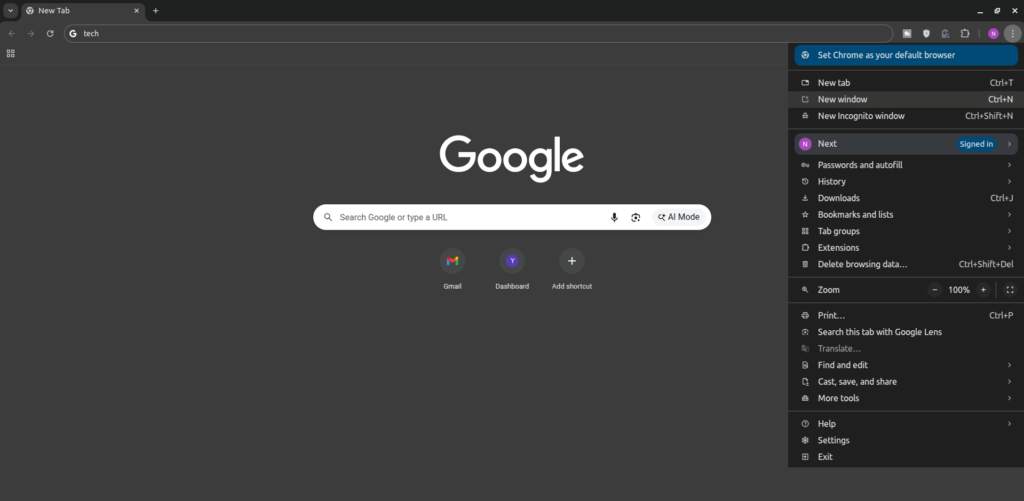
- Click the three-dot menu in the top right corner.
- Go to Cast, save, and share > Create shortcut.
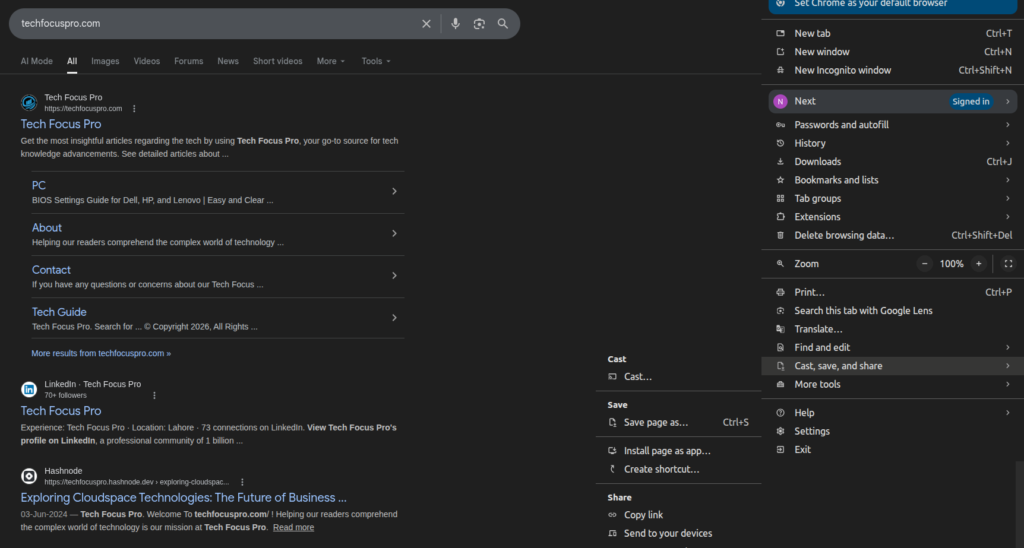
- Enter a name for your shortcut.
- You can check Open as window if you want it to open like an app.
- Click Create
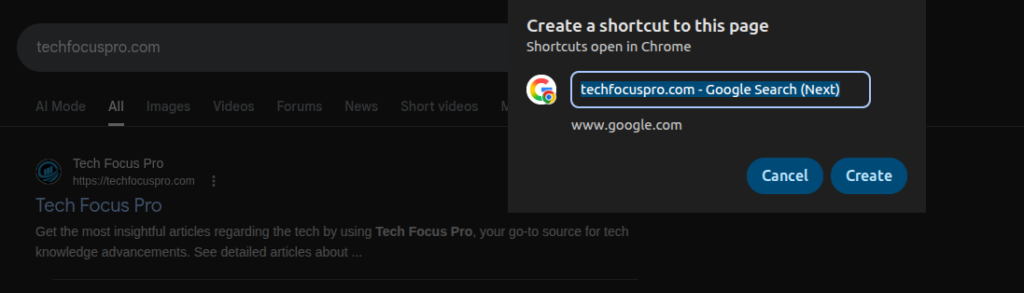
Your shortcut will appear on the desktop.
Method 3 – Using Microsoft Edge
Edge also lets you install a website like an app.
- Open the website in Microsoft Edge.
- Click the three-dot menu.
- Go to Apps > Install this site as an app.
- Click Install to confirm
The shortcut will be added to your desktop, and the site can open in its own window.
Method 4 – Manual Shortcut Creation
You can also create a shortcut by adding the website link yourself.
- Right-click on your desktop.
- Click New > Shortcut.
- Paste the website URL into the box.
- Click Next
- Enter a name for the shortcut.
- Click Finish
How to Make a Desktop Shortcut for a Website on Mac
If you use a Mac, you won’t see the exact same options as Windows, but don’t worry. macOS still gives you simple ways to create website shortcuts. The idea is the same. You create a quick link on your desktop so you can open your favourite site without searching for it again.
Method 1 – Drag URL to Desktop (Safari or Chrome)
This is the most direct way to create a shortcut on Mac. It feels very natural once you try it.
How it works:
- Open any website in Safari or Chrome.
- Look at the address bar where the website link appears.
- Click and hold the URL
- Drag it out of the browser and drop it onto your desktop.
As soon as you release it, a shortcut file will appear. You can double-click it anytime, and the website will open in your default browser.
Method 2 – Turn Website into an App (Chrome Trick)
Chrome gives you a slightly better option if you want a cleaner experience. It lets you treat a website like a small app.
Follow these steps:
- Open the website in Google Chrome.
- Click the three-dot menu in the top right corner.
- Go to Cast, save, and share and then click Create shortcut.
- Give your shortcut a name.
- Select Open as window if you want it to open without tabs.
This makes the website feel more like a standalone app, which is great for tools you use daily.
Method 3 – Use Safari Bookmarks as a Shortcut
Safari does not have a direct “create shortcut” button, but you can still get the same result with a small trick.
Here’s what to do:
- Open the website in Safari.
- Add it to your bookmarks.
- Open your bookmarks list or sidebar.
- Click and drag the saved bookmark onto your desktop.
This creates a clickable shortcut that works just like the others. It’s a simple workaround and works well for everyday use.
How to Make a Website Shortcut Open Like an App
Sometimes you may not want a website to open in a normal browser with tabs and extra buttons. You might prefer a clean screen that feels more like a simple app. This is where the “Open as window” feature is useful.
When you turn on this option while creating a shortcut in Chrome or Edge, the website opens in its own separate window. It removes things like tabs, the address bar, and bookmarks, so you only see the main content. This makes the experience cleaner and easier to focus on.
This feature is especially helpful if you use certain websites every day. It saves you from distractions and gives you a more organised workspace. Instead of switching between many tabs, you can open each important site in its own window.
It works best in Google Chrome and Microsoft Edge, as both browsers support this option smoothly. You can use it for websites like WhatsApp Web, Gmail, Notion, or any tool you use regularly. Once set up, it feels just like opening a normal app from your desktop.
How to Customise Your Website Shortcut
After creating a website shortcut, you can adjust it to match your needs and keep your desktop organised.
- Rename the shortcut
Right-click on the shortcut, click Rename, and type a simple name like “Gmail” or “Work Dashboard” so it’s easy to find. - Change the icon (Windows)
Right-click the shortcut and open Properties, then click Change Icon. Choose an icon from your system or add one you downloaded to make it easy to recognise. - Move it to the taskbar or Start menu
Drag the shortcut to the taskbar for quick access, or right-click it and select Pin to Start so you can open it without going to the desktop. - Organise shortcuts in folders
Create folders on your desktop and group similar shortcuts together, like work tools or social sites. This keeps your screen clean and easy to manage.
Common Problems and Fixes
Sometimes a website shortcut may not work the way you expect. The good news is that most issues are easy to fix with a few simple checks.
Shortcut Not Opening Correctly
If your shortcut is not opening the website, the first thing to check is the link. Right-click the shortcut, open Properties, and make sure the URL is correct. Even a small mistake in the link can stop it from working.
Another thing to check is your default browser. If your system is not set to use a proper browser, the shortcut may not open correctly. Go to your system settings and make sure Chrome, Edge, or another browser is set as the default.
Icon Not Showing Properly
Sometimes the shortcut icon may look blank or not match the website. This can happen due to a small system glitch.
You can try refreshing the icon by right-clicking on the desktop and selecting Refresh. If that does not fix it, you can change the icon manually. Right-click the shortcut, go to Properties, click Change Icon, and choose a new one.
Shortcut Opens in Browser Instead of App Mode
If your shortcut opens in a normal browser window instead of a clean app-like window, it usually means the setting was not enabled.
To fix this, recreate the shortcut and make sure to select the Open as window option in Chrome or install the site as an app in Edge. Once this is enabled, the website will open in its own separate window without tabs.
Desktop Shortcut vs Bookmark – What’s Better?
| Feature | Desktop Shortcut | Bookmark |
| Location | Saved on your desktop screen | Saved inside your browser |
| Access Speed | Opens with one click from desktop | Needs you to open browser first |
| Ease of Use | Very easy for quick access | Good for organizing many links |
| Best For | Daily-use websites like Gmail or tools | Saving multiple websites for later |
| Setup | Created on desktop manually or via browser | Added using browser’s bookmark option |
| Appearance | Looks like an app or icon on desktop | Stored in bookmarks bar or menu |
| Internet Needed | Yes | Yes |
FAQs
How to create a shortcut for a website on a desktop?
The easiest way is to open the website and drag the lock icon from the address bar to your desktop. You can also use options like Create shortcut in Chrome or install the site as an app in Edge.
How do I put a quick link on my desktop?
A quick link is just another name for a shortcut. You can create it by dragging the website URL to your desktop or by using the New > Shortcut option on Windows.
Do shortcuts work without the internet?
No, website shortcuts need an internet connection. They only open the website, not store it on your computer.
Can I create shortcuts on mobile devices?
Yes, but on mobile devices, shortcuts appear on the home screen instead of a desktop. The steps are slightly different depending on the device.
Why does my shortcut open in a browser instead of a separate window?
This usually happens because the shortcut was created as a normal link, not in “app mode.” So when you click it, your system opens it in your default browser with tabs and the address bar.
Here’s how to fix it step by step:
- In Google Chrome:
- Open the website → click the three-dot menu → go to Cast, save, and share > Create shortcut → check Open as window → click Create
- Now the shortcut will open in a clean, separate window.
- In Microsoft Edge:
- Open the website → click the three-dot menu → go to Apps > Install this site as an app → click Install.
- This installs the site like an app and opens it in its own window.
- Important thing to check:
- If you created the shortcut by dragging the URL or using “New > Shortcut,” it will always open in a normal browser. You need to recreate it using Chrome or Edge with the app option.
Is it safe to create website shortcuts?
Yes, it is safe as long as the website is trusted. Avoid creating shortcuts for unknown or suspicious websites.
How to create shortcuts in Chrome, Edge, Firefox, or Opera?
Most browsers follow a similar idea. Chrome has a Create shortcut option, Edge lets you install sites as apps, and Firefox or Opera supports drag-and-drop. The steps may look a bit different, but the result is the same.
How to add a website shortcut on Windows 11?
On Windows 11, you can right-click on the desktop, select New > Shortcut, and paste the website link. You can also use browser features for a quicker method.
Final Thoughts
Creating a desktop shortcut for a website is one of the easiest ways to save time and stay organised. Instead of opening your browser and searching again and again, you can access your favourite sites with just one click.
Whether you use Windows or Mac, the steps are simple and take only a few seconds. You can also choose to open websites like apps for a cleaner and more focused experience.
If you regularly use tools like Gmail, WhatsApp Web, or work dashboards, setting up shortcuts can make your daily tasks much faster. Once you try it, you will likely use it for many of your important websites.