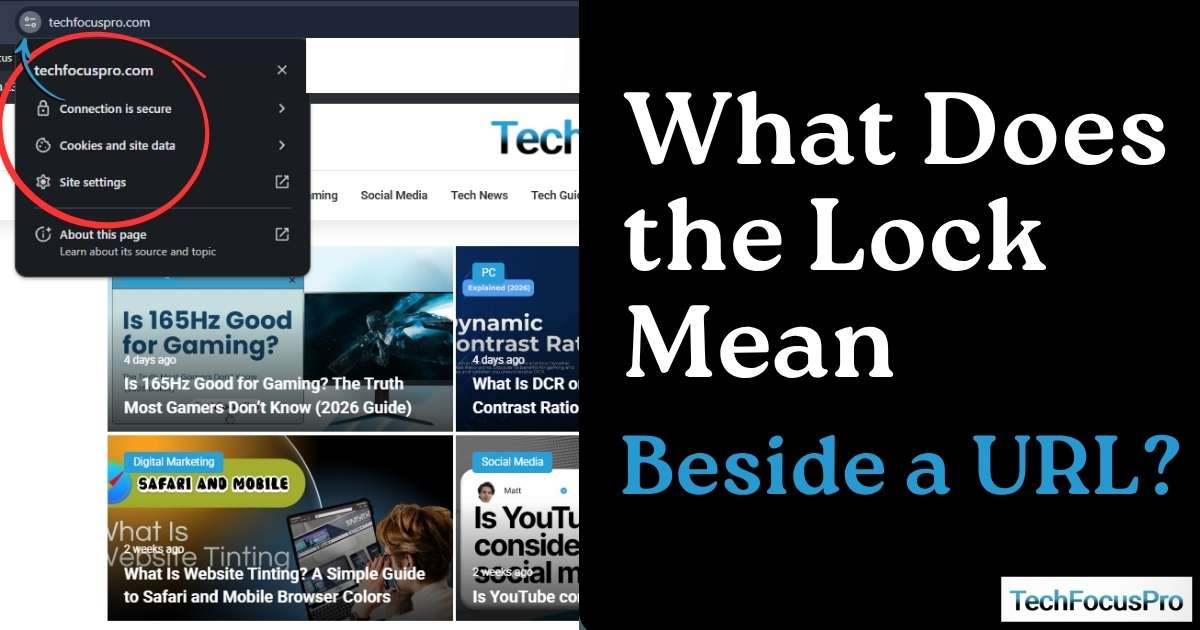
Have you ever opened a website and noticed a small lock icon next to the URL at the top of your browser?
Most people see it every day but don’t really know what it means. Some think it means the site is completely safe. Others just ignore it.
So what does that lock actually do?
In simple words, the lock icon shows that your connection to the website is secure. It helps protect the information you send, like passwords or personal details.
But there’s more to it than that.
In this guide, you’ll learn what the lock icon really means, what it does not mean, and how to know if a website is truly safe to use.
What Is HTTPS (In Simple Words)?
Basic Explanation
HTTPS is the secure version of HTTP, which is the system your browser uses to load websites.
When a site uses HTTPS, it adds a layer of protection. It locks the data you send and receive, so no one else can easily see it. This includes things like passwords, login details, and payment info.
This protection works through something called encryption. In simple words, encryption turns your data into a secret code while it travels across the internet. Only the website you are visiting can unlock and read it.
That is why websites with HTTPS show a lock icon in your browser.
Real-Life Analogy
Think of it like sending a message:
- HTTP is like sending a postcard. Anyone along the way can read what is written on it.
- HTTPS is like sending a sealed envelope. The message inside is hidden, and only the person who receives it can open and read it.
This is what makes HTTPS much safer for everyday browsing.
HTTP vs HTTPS (Detailed Comparison)
| Feature | HTTP | HTTPS |
| Full Form | HyperText Transfer Protocol | HyperText Transfer Protocol Secure |
| Security | Not secure | Secure |
| Data Protection | No protection for data | Data is protected with encryption |
| Lock Icon | No lock icon shown | Shows a lock icon in the browser |
| Data Safety | Data can be seen by others | Data is hidden and protected while it travels |
| Use Case | Basic browsing only | Logins, payments, and all modern websites |
| Trust Level | Low trust | High trust |
| Browser Warning | Often shows “Not Secure” | No warning, seen as safe |
| SEO Impact | Can hurt rankings | Slight ranking benefit in Google |
| Standard Today | Outdated | Standard for all websites |
What Does the Lock Actually Protect?
The lock icon helps protect the information you share with a website while you are using it.
This includes:
- Your passwords when you log in
- Personal details like your name, email, or phone number
- Payment information like card details
- Anything you type into forms on the site
When the lock is there, this data is hidden while it travels between your device and the website. This makes it much harder for hackers or other people to see or steal it.
But remember, the lock only protects the connection, not the website itself. The site could still be unsafe or fake, even if the lock is showing.
Does the Lock Mean a Website Is 100% Safe?
No, the lock icon does not mean a website is completely safe.
It only tells you one thing: your connection to the website is secure. This means the data you send and receive is locked while it travels across the internet, so others cannot easily see it.
But the lock does not check what the website is doing with your data. It does not confirm if the site is honest, real, or safe to trust.
For example, a scam website can still get an SSL certificate and show the lock icon. It may look normal, but it can still try to collect your personal details or payment information.
So the lock protects your connection, not the website’s intent.
That is why you should always look at other signs too. Check the website name carefully, watch for strange spelling, and avoid sites that look rushed or suspicious.
What Happens If There Is No Lock Icon?
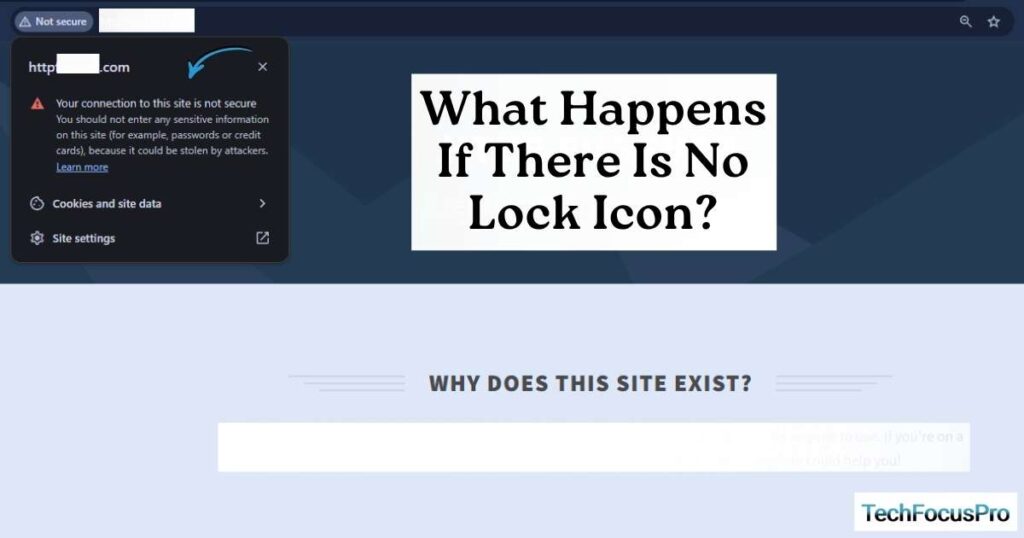
If there is no lock icon, it means the website is not using HTTPS. Instead, it is using HTTP, which is not secure.
In this case, the information you send and receive is not protected. This means others may be able to see your data while it travels across the internet. This can include things like passwords, messages, or form details.
Most modern browsers will also show a warning like “Not Secure” next to the URL. This is a clear sign that the site may not be safe to use.
Using such websites can be risky, especially if you are entering personal or payment information. It is always better to avoid sharing sensitive data on sites that do not show the lock icon.
Different Lock Icons You Might See
Browsers use small icons to quickly show you how safe a website connection is. These icons may look simple, but they give important clues.
A closed lock icon means the connection is secure. The website is using HTTPS, and your data is protected while it travels. This is the normal and safe sign you want to see on most websites.
Sometimes, you may see a warning triangle instead of a lock. This means there is a problem with the site’s security certificate. The connection might still work, but it is not fully trusted. This can happen if the certificate is expired, set up incorrectly, or does not match the website.
You might also see an open lock or a “Not Secure” message. This means the website is not using HTTPS properly, or not using it at all. In this case, your data is not protected, and anything you enter could be seen by others.
How to Check If a Website Is Truly Safe
The lock icon is helpful, but it should not be the only thing you trust. To stay safe, you need to look a bit deeper.
First, check the domain name carefully. Make sure the spelling is correct, and there are no strange words or extra letters. Fake websites often use names that look very similar to real ones.
Next, avoid suspicious URLs. If the link looks messy, too long, or full of random numbers and symbols, it is better not to trust it.
It also helps to look for reviews. A quick search can tell you if other people have had a good or bad experience with the site.
Pay attention to how the website looks. A poorly designed site with broken pages, too many ads, or strange content can be a warning sign.
As a bonus, you can click on the lock icon in your browser. This will show you more details about the site’s security certificate and who owns it. It is a simple way to learn more about the website before you trust it.
How Websites Get the Lock Icon
Websites do not get the lock icon automatically. They have to set up a few things to make their connection secure.
First, they need to install something called an SSL certificate. This is like digital proof that the website is real and can create a secure connection. It also helps lock the data that moves between the user and the site.
Next, the website must enable HTTPS. This means all pages should load using the secure version of the link, not the old HTTP version. Most websites do this by setting rules that automatically send users to the secure version.
Finally, the certificate needs to be kept updated. SSL certificates do not last forever. If they expire or are not renewed, the browser may show warnings instead of the lock icon.
When all these steps are done correctly, the website shows the lock icon.
Does the Lock Icon Affect SEO?
Yes, the lock icon can affect SEO, but not in a big or direct way.
The lock icon itself is not a ranking factor. What matters is the HTTPS behind it. Google has confirmed that HTTPS is a ranking signal, but it is a small one. This means it can help your site, but it will not push you to the top on its own.
Still, it plays an important role in overall performance.
First, it builds trust. When users see the lock icon, they feel safer. They are more likely to stay on your site, read your content, and take action. This can improve things like time on site and conversions.
Second, modern browsers warn users when a site is not secure. If your site shows “Not Secure,” many people will leave right away. This can increase your bounce rate, which is not good for SEO.
Third, HTTPS is now a standard. Most websites already use it, so not having it can put you behind your competitors.
Also, some features only work on secure sites. For example, certain browser features and tools require HTTPS. Without it, your site may feel outdated or limited.
Common Questions People Ask
Why is there a lock next to the link?
The lock appears because the website is using HTTPS. This means the connection between your browser and the site is secure. It protects the data you send and receive so others cannot easily see it.
Is a lock icon always safe?
No, it is not always safe. The lock only means the connection is secure. It does not guarantee that the website itself is honest or trustworthy. A site can still be harmful even if it shows a lock.
Can a fake website have a lock icon?
Yes, it can. Getting HTTPS is easy today, so even fake or scam websites can show a lock icon. That is why you should always check the website name and other signs before trusting it.
What does “Not Secure” mean?
“Not Secure” means the website is not using HTTPS. Your connection is not protected, and the data you share can be seen by others. It is a warning that you should be careful on that site.
Should I enter my password without a lock?
No, you should not. If there is no lock, your password is not protected. It can be at risk of being stolen. Always make sure the lock icon is present before entering sensitive information.
How do I fix “Not Secure” on my site?
To fix this, you need to install an SSL certificate and switch your website to HTTPS. After that, make sure all pages load securely, and your certificate stays updated. Once everything is set up correctly, the lock icon will appear.
Final Thoughts
At the end of the day, the lock icon is easy to understand once you know what it stands for. If you see a lock, it means your connection to the website is secure. Your data is protected while it moves between you and the site. If there is no lock, there is a higher risk. Your information may not be safe, especially if you are entering personal details. But remember, the lock is just one piece of the puzzle. It does not guarantee that a website is honest or safe to trust. The smart approach is to stay aware. Always check the website name, avoid anything that looks suspicious, and think before you share your information.